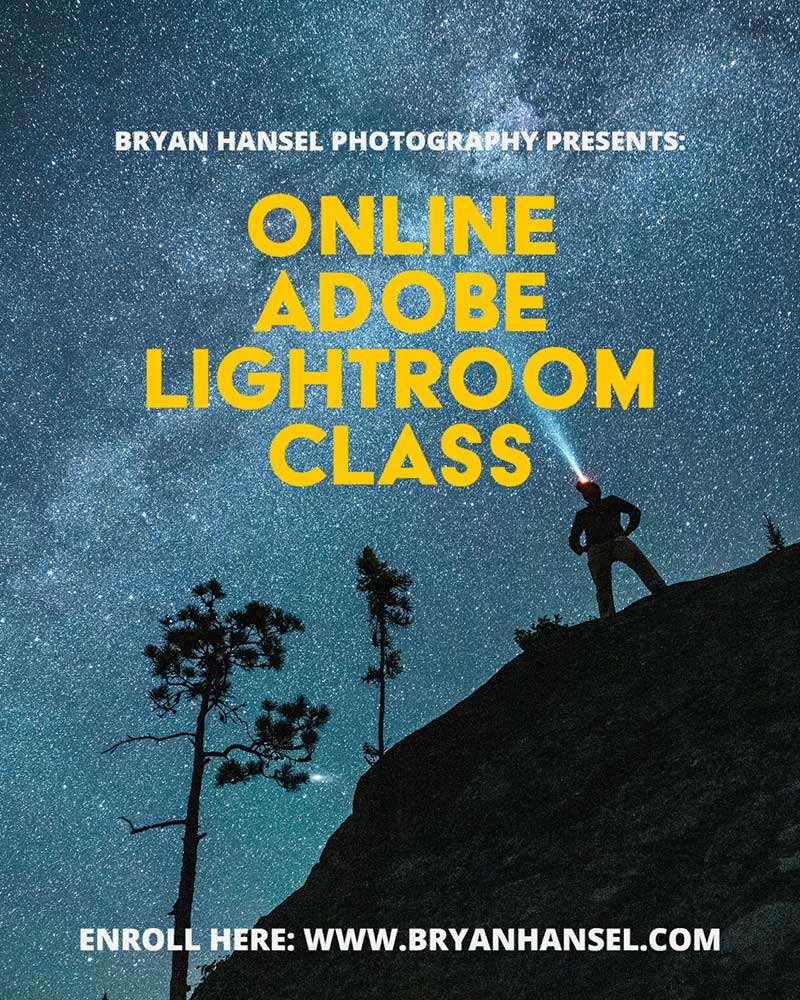
Learn Adobe Lightroom Classic in a small-group, live online class focused on real-world photo organization, editing, and printing—so you can build an efficient workflow and confidently finish your photographs.
Dates: November 9, 11, 16, 18, 2026 | 6:30pm-8:00pm
Location: Online Zoom Meeting
Cost: $250
“I’ve been using Lightroom since version one, but I never knew how to do so many of the things you’ve demonstrated. This will be a big help going forward.”
– John from Mendota Heights, MN
Adobe Lightroom Classic is the heart of my personal editing and photo-management workflow. In this live, small-group online class, I’ll teach you how I use Lightroom Classic to organize large photo libraries, edit efficiently, and prepare finished photographs for sharing and printing.
This course focuses on building a clear, repeatable workflow ranging from importing and organizing your images, through editing in the Develop module, to exporting and making your first successful prints, so you can spend less time searching for tools and more time finishing your photographs.
Dates: November 9, 11, 16, 18 | 6:30pm-8:00pm | 4 sessions over 2 weeks
- If you are unable to attend a live session, you will receive a recording so you can watch the class on your own schedule.
- Class size is limited to 25 participants to allow time for questions.
Price: $250 per person (includes nonrefundable deposit of $125)


Online Adobe Lightroom Class Course Syllabus
This is the tentative course syllabus. This may vary slightly depending on the number of questions.
Each session combines demonstration, guided practice, and live Q&A. The outline below shows how the course is structured.
Session 1: Setting Up for Success
Asynchronous (available a week before the workshop begins): During session one of the online Adobe Lightroom class, we will discuss setting up your computer and Lightroom Classic for success. We’ll start with learning about monitor calibration using the x-Rite i1 Display to make sure that you have your monitor setup to display colors, contrast, and brightness correctly. Then we’ll cover the best practices for storing your images both online and in your home.
Synchronous: I’ll answer any questions you have about the asynchronous component of session one. Then we’ll cover how the Lightroom catalog works and how to get your images into Lightroom while keywording them for the future. Depending on the number of questions about the catalog, we may dive into editing.
Session 2: Introduction to Editing
Asynchronous: Before we dive into the Develop module in Adobe Lightroom, we’ll cover the three-step process of editing, so that you’ll not only know what the tools do but how to know what tools to use.
Synchronous: We’ll go over the various tools that Adobe Lightroom’s Develop module offers, including profiles, tonal tools, presence, the HSL/Color panel, sharpening and noise reduction tools, lens correction, local adjustment brushes and more. We’ll also cover the magic auto button and what it does right and what it gets wrong. Finally, we’ll finish the session by learning how to import, make and use presets. I’ll also demonstrate editing images using what you just learned.
Session 3: Advanced Editing Techniques
Our third session covers advanced editing techniques including using local adjustment brushes for dodging and burning, luminosity/range masks, and other local adjustment tools. The masking tool is one of the most powerful tools for editing images, so we will spend the majority of time on making effective masks. You’ll see my painting with light technique demonstrated and you’ll be able to follow along using some of my images depending on how many monitors/computers you have.
Session 4: Sharing Your Vision
The last session covers exporting and printing. We’ll start with exporting your image to the web, including using publish services to upload directly to websites. You’ll learn how to add a watermark to your image. Then we’ll launch into the basics of printing and how to get a print that looks like what your screen shows. That will include soft proofing, paper or online printer profiles and setting up a print. We’ll finish the course by following up on any questions that you have.
Additional Information
For this online Adobe Lightroom class, we’ll use Zoom as our classroom. We’ll have four classroom sessions during which you’ll learn about how to import your images into Lightroom, catalog them correctly, learn how to use the Develop module to achieve your vision and how I use the Develop module to achieve the look I want in my photos. We’ll also cover the Print module and exporting and watermarking images to the web. Each session lasts approximately one and a half hours depending on questions.
The sessions will be recorded and the recording will be provided to you for download. Each week, you’ll also receive the weekly course outline and a short assignment. While the assignments won’t need to be turned in the following week, they’ll provide a way for you to explore what you learned.
Adobe currently offers two Lightroom products. All instruction in this course uses Adobe Lightroom Classic, which is the most full-featured version and the one I use in my own professional workflow. Even though it isn’t exactly the same as the other version, it can still sync to the cloud if you want to do that. If you aren’t currently subscribed to Adobe Lightroom, I’d suggest a trial subscription for the length of the course.
Course Requirements
This class is designed for photographers using Lightroom Classic on either Windows or macOS.
You should have a computer that has the ability to run Zoom. You can run Zoom from your browser or from the Zoom desktop app. You should also have Adobe Lightroom Classic either as a subscription service or as a demo. I’ll use the latest version of Lightroom Classic to demonstrate during the class. If you have an older version, you may find that it’s much different than what you have, so, please, update to the current version.
To follow along during the class, you may find two monitors helpful. If you have that, you can have one showing my presentation and one showing your work station. While this isn’t necessary, it might be helpful depending on the size of your main monitor. If your TV has an HDMI connection, you may be able to turn it into a second monitor for my presentation while you use your computer/laptop as your work station. I will not cover this during the classroom, so you will need to work it out before the class. I’m happy to work with you before the class starts if needed.
Workshop type: Online Workshop. Learn more about workshop types.
Maximum number of participants: 25
Level: This workshop is for all levels of photographers and works best for photographers using digital cameras.
Activity level: This is an online course. Expect at least 1.5 hours of classroom time each session. Some sessions may long longer.
What’s included in the workshop fee: Online course. Fun!
What’s not included in the workshop fee: Internet access, computers, or anything you may need to join the course from your home.
Equipment list: You’ll need a computer with a webcam and Zoom software. If you want to follow along, it is helpful to have two screens.
Registration and Cancellation Policies
Please, read the Registration and Cancellation Policies at the link. There are no exceptions to the policy.